
Implementation Guide management
IG Storage
Since release 28.0 IG’s all files belonging to an IG are saved in the same folder. No longer in the root of the project and not in different folders. The folder name will be the same as the IG name.
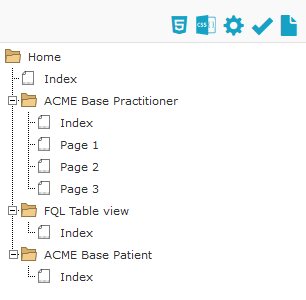
To illustrate how this works, see the screen picture of an example IG containing three topics with one or more pages for each topic.
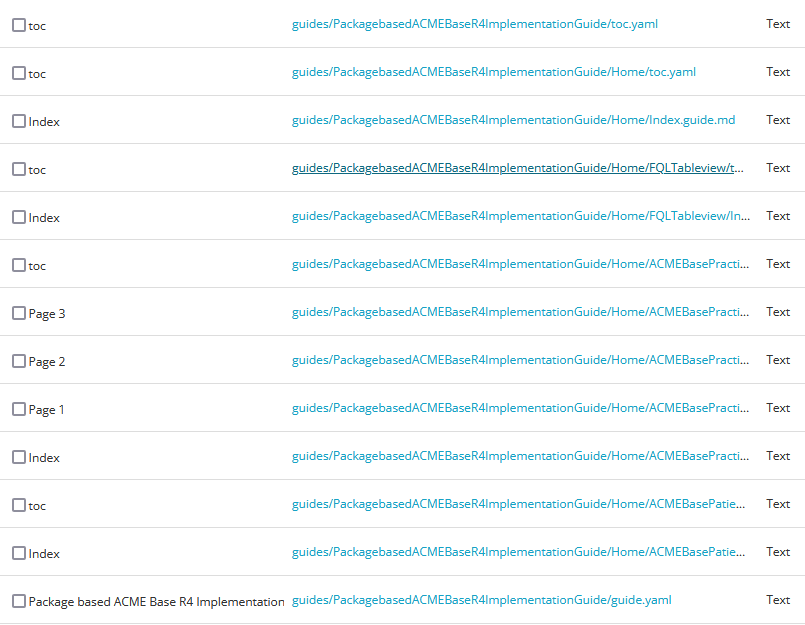
In the project’s filemanager you can see the different folder structures for each guide.
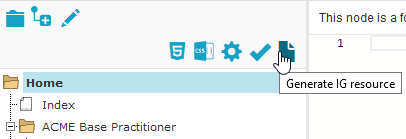
To Save your IG as a Resource, click on the Generate IG resource button in the left pane of the IG-editor. Note that it is the tree structure that is saved. Textual changes are save automatically.
Export your IG
To use your IG outside of Simplifier, click on the Export button next to your IG in the Guides section of your project.

Create a copy of your IG
Since the release of Simplifier 28.0 it is possible to create a copy of your Implementation guide.
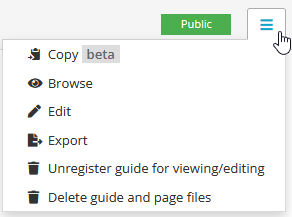
A guide can be copied to the same project or to another project. The Target project: dropdown provides an list of all of your projects where you can create a copy of your IG.
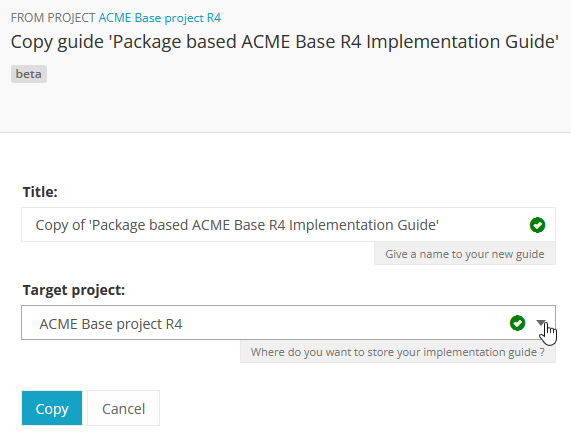
You can now have multiple version of your Implementation Guide live in the same project (or different projects). You could have one IG use a release package as the scope while the development version uses the live developement version of your project.
Convert guide.yaml to a Simplifier webbased IG.
Sometimes you see an implementation guide on Simplifier that just simply blows you away and you want to see how this has been created. Luckily, you can create a copy of those guides in a project of your own and take a look at their IG editor content.
Guides created after August 2021 are stored in the new folder based storing way. These implementation guides can still be converted to a Simplifier webbased IG in a (private) project using the guide.yaml file.
Please follow these steps to create your own edition of a Simplifier IG.
Download the project containing the desired guide as a .zip file.
Upload the .zip to (preferably private) project.
Go to
manage>File manager.Search for guide.yaml.
Open desired guide.yaml for the guide you want to create.
Click on
Updatefollowed byEdit: Create IG and start updating in IG Editor.Wait for the IG to be created and you are good to go.
Convert ImplementationGuide resource to a Simplifier webbased IG
Important
This feature only works for Legacy guides in order to ensure backwards compabibility and will therefore create a guide in the legacy way of Markdown files.
An ImplementationGuide resource can be converted to a Simplifier webbased IG. This comes in handy if you for example accidently deleted your IG or if you want to duplicate your IG in another project.
Make sure that the project contains the ImplementationGuide resource and all the belonging content (.md pages, images, etc.)
Locate the an ImplementationGuide resource.
Click on
Updatefollowed byEdit: Create IG and start updating in IG Editor. This will convert the ImplementationGuide resource to a Simplifier IG.Follow the configuration steps and locate the IG in the Guides tab.
Note: If you want to export and import a project through a .zip you have to make sure that the folder structure is the same as in the project, to make sure links between IG resources are still in tact. Zipping a containing folder will include the folder in the zip-file. To make sure no extra layer of folders is added, directly zip the resources within a folder instead.
Manage your IG using GitHub
The GitHub webhook enables you to manage your Implementation Guide (IG) without using the editor interface directly. Detailed instructions for setting this up can be found in the GitHub integration documentation.
Implementation Guides are now organized in a folder-based structure, providing greater flexibility for templating and editing. Each IG includes a configuration file called guide.yaml and requires a specific folder structure to function correctly. If you still have a legacy guide, we highly recommend migrating to the new IG style.
When you create an IG using the Simplifier UI, an initial guide.yaml file and the required folders are automatically generated. It is advisable to add a few folders and empty pages to familiarize yourself with the required structure. Once this is done, you can move your IG to GitHub.
To do this, download the project locally (extract it) and copy your IG to your GitHub repository. Make sure to maintain the same folder structure as in the downloaded project. This applies to both the guide folders and your resources. Any changes to the folder structure may result in duplicates or break the link to the guide.yaml file, causing issues with rendering. If this occurs, please contact Simplifier support through your JIRA portal. or email us at simplifier@fire.ly and we will assist you.
Once everything is set up, you can make changes locally using your preferred editor and sync them back to Simplifier.